DisDubs › How to play
Guide
How to play
Updated 17 August 2026
Add the bot to your server, join a voice channel, open DisDubs from the activity tray, and pick a scene. Claim the characters you want, perform the lines over voice chat, and the server mixes your voices onto the clip and hands you back an mp4.
Nobody installs anything. It is free, and it works the same on desktop, the web client and phones.
Before the first session
-
Add the bot to the server
One person with permission to add apps does this once. The bot needs to see channels, join voice, and deafen. That last one is only there because of a mode you can turn off, explained below.
-
Everybody joins the same voice channel
This is the part people miss. The recording happens on the voice call, so anyone not in the channel is not in the dub.
-
Open DisDubs from the activity tray
It is the rocket icon in the voice channel controls. Everyone who wants to see the script opens it; the bot joins on its own.
Running a scene
-
Pick a scene
From the built-in catalogue, or from packs your server has uploaded. Cards preview silently as you scroll, so you can find the one you meant without playing audio at everybody.
-
Cast the parts
Claim characters. One person can hold several, and everyone sees who has what. Nobody is locked out of watching: people without a part are audience, and their audio is never used in the dub.
-
Choose how to shoot it
Whole scene plays the clip in sync on every screen and everyone performs at once, reacting to each other, like a table read. At your own pace gives each person their own booth to work their own lines in, which is slower and gets better results. Pick per session; the choice is not permanent.
-
Perform
The script scrolls over the picture and your lines light up as they arrive. A three-count leads you in, and the cursor closes on your in-point so you have something to time against rather than a number counting down at you.
-
Fix what needs fixing
Every line comes back as its own take. Redo any of them, keep whichever version you prefer, and drag anything that landed early or late into place against the original waveform. Nothing is re-recorded when you nudge. You are moving where it plays.
-
Render, and watch it together
The server mixes the tracks down to an mp4 and premieres it to the room. If it is not right, go back, fix a line, and render again.
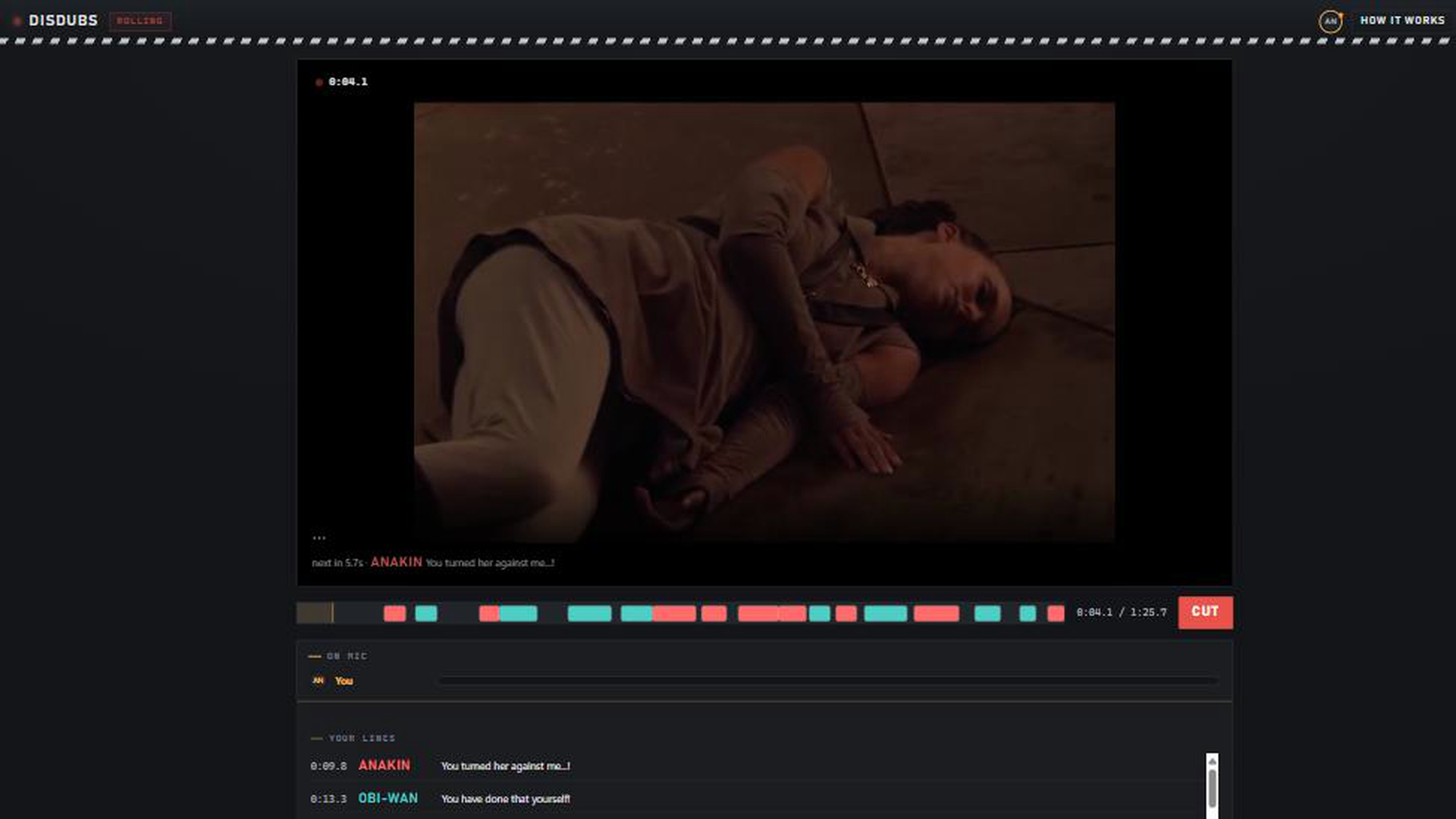
How the recording works, and why it matters
A Discord Activity cannot reach a microphone. The sandbox it runs in refuses, and no amount of asking changes that. So DisDubs records a different way: a bot sits in your voice channel and captures each performer on their own separate track.
That turns out to be better than microphone capture would have been. Nobody installs anything or grants a permission, it behaves identically on desktop, web and mobile, and because every performer is isolated, one person laughing does not land on somebody else’s line. It also means your ordinary Discord microphone setup is your recording setup: if your friends can hear you, the dub can.
Tell your friends it is running
During a take, the bot listens to everyone for the level meter, but it records only people who are performing. Everyone else’s audio is measured and discarded immediately; it is never written to disk or used in the dub. The bot is visible in the channel while it listens, so tell everyone before you roll. The privacy policy states exactly what is stored and for how long. Raw takes are deleted about two hours after the session, and finished dubs after six.
The two things people ask about first
Solo booth
Working at your own pace has a problem: everyone is performing at once in the same voice channel, so you can hear five people doing different lines. Solo booth server-deafens the cast while they record, so each person hears only the scene. It is the reason the bot asks for the deafen permission, it is undone the moment the session ends, and you can turn it off.
The backing track slider
A pack with a dialogue-free backing track replaces the original voices entirely. A pack without one still has them in there, quietly, under yours. The slider decides how loud that bed sits in the finished mix, and it is separate from whether performers hear the clip while recording, because turning the mix down should not take away the thing you are timing against.
When something goes wrong
- The bot is not in the channel. It joins when the activity opens. If it does not, check it has permission to see and join that specific channel, since per-channel overrides beat server-wide ones.
- Somebody’s line came back silent. They were muted, or not in the voice channel, or joined after the take started. The level meter shows who is actually being heard before you roll.
- A line lands slightly late. That is what nudge is for. Every device has its own audio latency, and rather than guess at a global correction, the take is draggable against the original.
- The video will not play. There is a “video not playing?” button on the stage. Hardware-accelerated decode failing is the usual cause and it raises no error, so the offer is always there rather than waiting for a signal that never comes.
Bringing your own scenes
The built-in catalogue is not the limit. DisDubs reads The Choicer Voicer’s dub packs and DubForge packs, so anything the community has already made works. Upload the zip from inside Discord and it appears in your server’s picker, private to your server unless you ask otherwise. The dub pack guide has the format and the limits.